はじめに
M365 Best Practice Checker は、Microsoft 365 テナントのセキュリティ設定をベストプラクティスに基づいて評価し、改善の優先順位を可視化するデスクトップアプリケーションです。このチャプターでは、インストールから初回スキャンまでの手順を説明します。
システム要件
- Windows 10 (64-bit) 以降
- Microsoft Edge WebView2 Runtime(インストーラーに同梱)
- Microsoft 365 テナントの管理者アカウント(グローバル閲覧者以上)
- インターネット接続(Microsoft Graph API へのアクセス)
インストール
- Microsoft Store から「M365 Best Practice Checker」を検索してインストールします。
- または、公式サイトからダウンロードした MSIX パッケージをダブルクリックしてインストールします。
- インストール完了後、スタートメニューからアプリを起動します。
Entra ID アプリ登録
M365 Best Practice Checker がテナント情報を読み取るためには、Entra ID にアプリを登録し、必要な委任権限を付与する必要があります。
- Microsoft Entra 管理センターにサインインします。
- 「アプリの登録」→「新規登録」を選択します。
- アプリ名(例: M365 BP Checker)を入力します。
- 「サポートされているアカウントの種類」で「この組織ディレクトリのみ」を選択します。
- リダイレクト URI は「**モバイルアプリケーションとデスクトップアプリケーション**」を選択し、
https://login.microsoftonline.com/common/oauth2/nativeclientを設定します。 - 登録後、「認証」→「パブリック クライアント フローを許可する」を「**はい**」に設定します。
- 「API のアクセス許可」で以下の Microsoft Graph **委任権限**を追加します:
User.Read— サインイン・ユーザープロフィール(既定)Policy.Read.All— セキュリティポリシー・CA・認証方法User.Read.All— ユーザー一覧・アカウント状態RoleManagement.Read.Directory— 管理者ロール割当Application.Read.All— アプリ登録・サービスプリンシパルAgreement.Read.All— 利用規約DeviceManagementConfiguration.Read.All— Intune コンプライアンス・デバイス構成DeviceManagementApps.Read.All— Intune App Protection Policy(MAM)SharePointTenantSettings.Read.All— SharePoint 外部共有設定SecurityAlert.Read.All— セキュリティアラートDomain.Read.All— ドメイン情報
- 「管理者の同意を与える」をクリックして、権限を承認します。
注意: すべて読み取り専用の委任権限です。テナントの設定を変更する権限は含まれていません。証明書やクライアントシークレットは不要です。
初回サインイン
アプリを起動すると、スキャン画面が表示されます。「サインイン」ボタンをクリックすると、ブラウザ内認証画面が表示されます。テナントの管理者アカウントでサインインしてください。
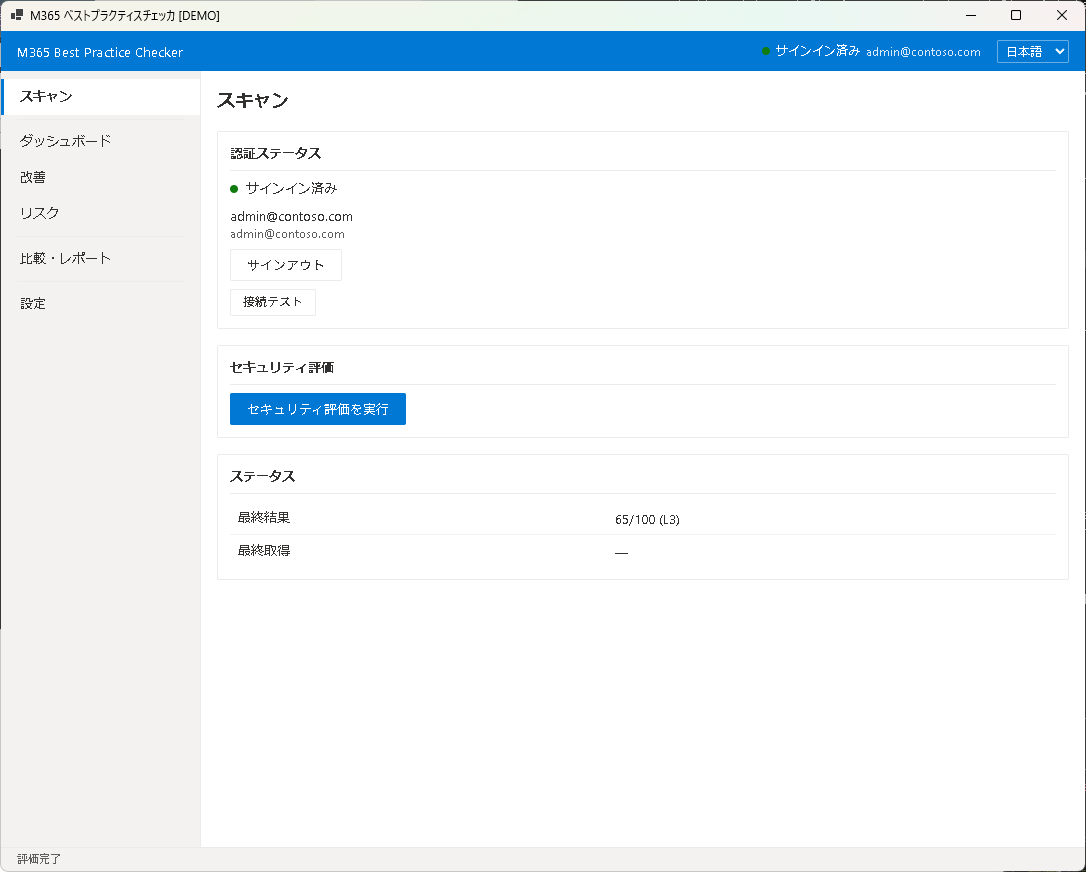
「サインイン」をクリックすると、Microsoft Graph API への接続が確立され、スキャンの準備が完了します。
次のステップ
サインインが完了したら、Chapter 2: スキャンに進み、テナントのベストプラクティス評価を実行しましょう。
Getting Started
M365 Best Practice Checker is a desktop application that evaluates your Microsoft 365 tenant security settings against best practices and visualizes improvement priorities. This chapter covers the steps from installation to your first scan.
System Requirements
- Windows 10 (64-bit) or later
- Microsoft Edge WebView2 Runtime (bundled with the installer)
- Microsoft 365 tenant admin account (Global Reader or higher)
- Internet connection (for Microsoft Graph API access)
Installation
- Search for "M365 Best Practice Checker" in the Microsoft Store and install it.
- Alternatively, double-click the MSIX package downloaded from the official website.
- After installation, launch the app from the Start menu.
Entra ID App Registration
M365 Best Practice Checker needs an Entra ID app registration with delegated permissions to read tenant information.
- Sign in to the Microsoft Entra admin center.
- Go to "App registrations" → "New registration".
- Enter an app name (e.g., M365 BP Checker).
- Under "Supported account types", select "Accounts in this organizational directory only".
- For Redirect URI, select "Mobile and desktop applications" and enter
https://login.microsoftonline.com/common/oauth2/nativeclient. - After registration, go to "Authentication" and set "Allow public client flows" to "Yes".
- Under "API permissions", add these Microsoft Graph delegated permissions:
User.Read— Sign-in, user profile (default)Policy.Read.All— Security policies, CA, auth methodsUser.Read.All— User list, account statusRoleManagement.Read.Directory— Admin role assignmentsApplication.Read.All— App registrations, service principalsAgreement.Read.All— Terms of UseDeviceManagementConfiguration.Read.All— Intune compliance, device configDeviceManagementApps.Read.All— Intune App Protection (MAM)SharePointTenantSettings.Read.All— SharePoint sharing settingsSecurityAlert.Read.All— Security alertsDomain.Read.All— Domain information
- Click "Grant admin consent" to approve the permissions.
Note: All permissions are read-only delegated permissions. No permissions to modify tenant settings are included. No certificate or client secret is required.
First Sign-in
Launch the app. The Scan screen appears. Click "Sign In" to open the browser authentication window. Sign in with your tenant administrator account.
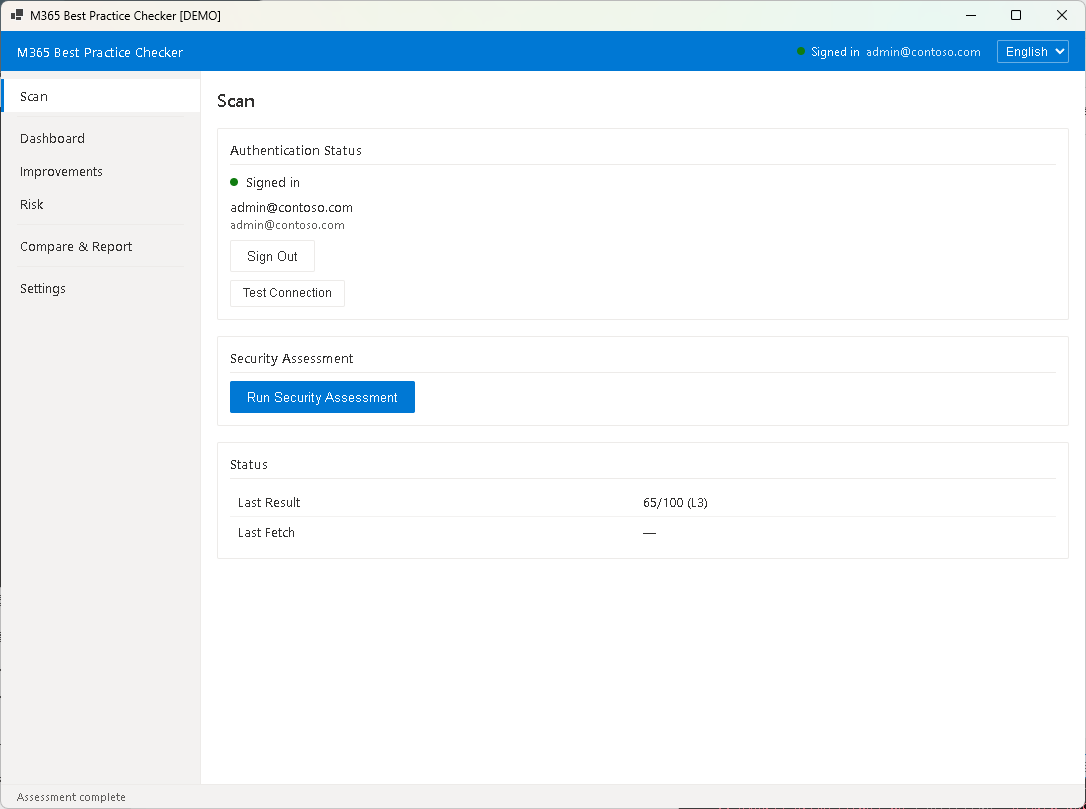
Click "Sign In" to establish the connection to Microsoft Graph API. Once connected, you are ready to run your first scan.
Next Step
After signing in, proceed to Chapter 2: Scan to run your first best practice evaluation.