改善
Improvements 画面は、Fail となったルールの一覧と、それぞれの具体的な対策を提供します。「どこから、どの順番で、なぜ直すべきか」を明確にする意思決定支援画面です。
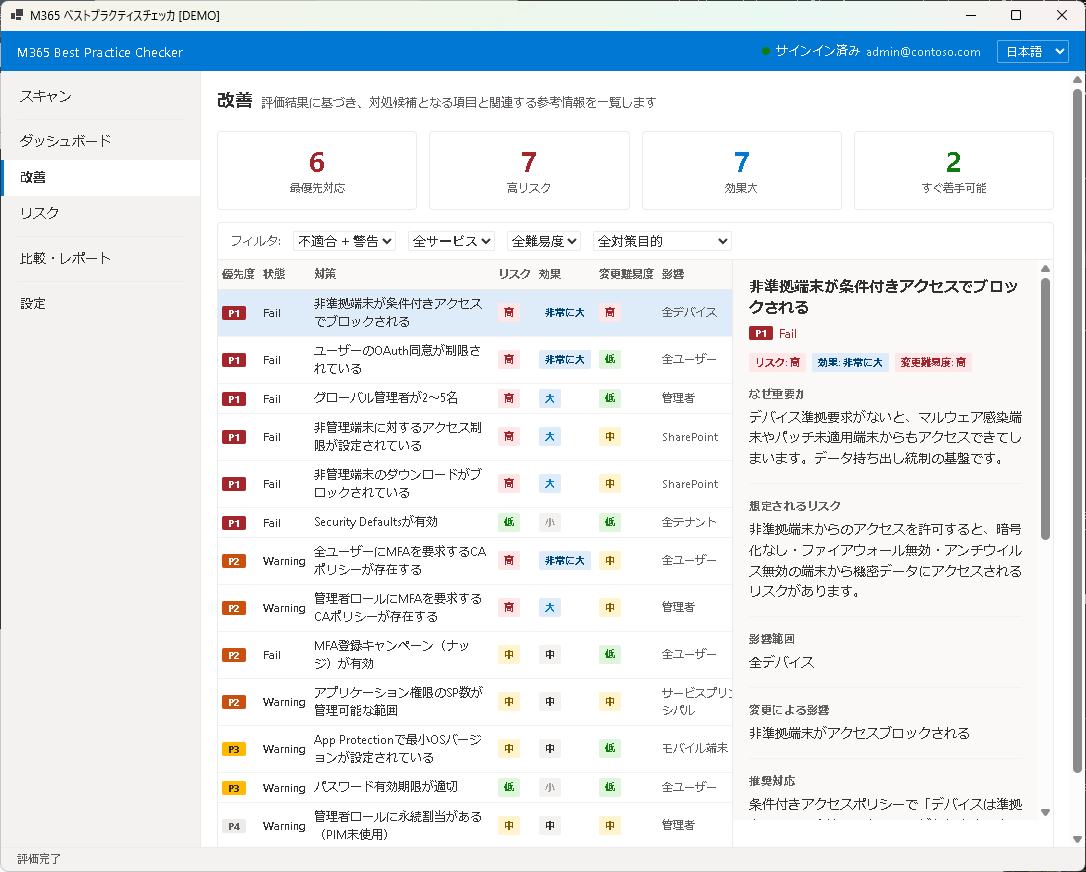
サマリーカード
画面上部には、改善項目の全体像を示すサマリーカードが表示されます:
- Total Fail — 未対処の Fail 項目の総数
- Essential — 最優先で対処すべき重要項目の数
- Addressed — 対処済みとしてマークした項目の数
- Potential Score Gain — すべての Fail を解消した場合のスコア上昇幅
フィルタ
Fail 項目をレイヤー(Identity / Device / Data / Governance)や優先度(Essential / Recommended / Optional)でフィルタリングできます。大量の Fail がある場合に、対処すべき範囲を絞り込むのに便利です。
テーブル
Fail 項目の一覧テーブルには、以下の列が表示されます:
- ルール名 — ベストプラクティスルールの名称
- レイヤー — Identity / Device / Data / Governance
- 優先度 — Essential / Recommended / Optional
- スコア影響 — この項目を改善した場合の推定スコア上昇
- ステータス — 未対処 / 対処中 / 対処済み / 除外
対策カード
テーブルの行をクリックすると、詳細な対策カードが展開されます。対策カードには以下が含まれます:
- 問題の説明 — なぜこの設定が重要なのか
- 推奨アクション — 具体的な対処手順(ステップバイステップ)
- 影響範囲 — 設定変更がユーザーに与える影響
- 参考リンク — Microsoft の公式ドキュメントへのリンク
ステータス管理
各 Fail 項目のステータスを変更して、改善作業の進捗を管理できます:
- 未対処 — まだ対応していない(デフォルト)
- 対処中 — 現在対応作業を進めている
- 対処済み — 対策を完了した(次回スキャンで確認)
- 除外 — 環境上の理由で対処しないと判断した
ステータスはローカルに保存され、次回スキャン時も維持されます。
次のステップ
リスクの全体像と改善優先度の詳細は Chapter 5: リスクで確認できます。
Improvements
The Improvements screen lists all failed rules along with specific remediation guidance. It is a decision-support screen that clarifies "where to start, in what order, and why."
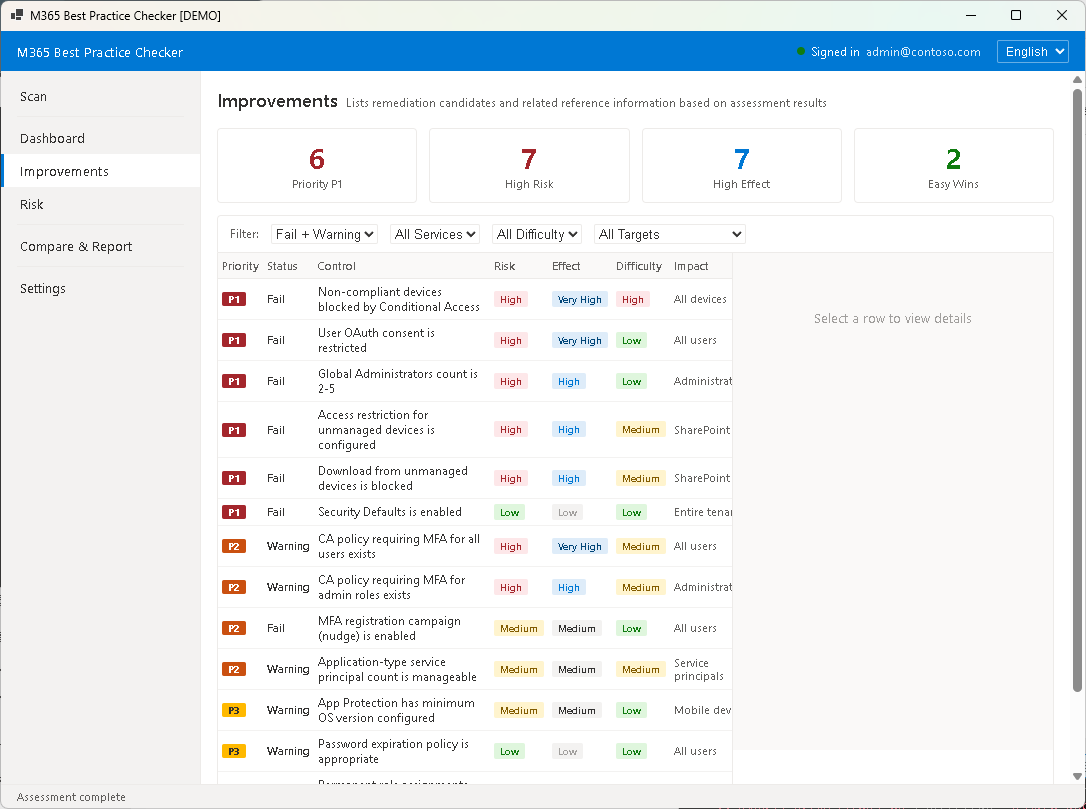
Summary Cards
At the top of the screen, summary cards provide an overview of improvement items:
- Total Fail — total number of unresolved Fail items
- Essential — number of high-priority items requiring immediate attention
- Addressed — number of items marked as addressed
- Potential Score Gain — estimated score increase if all Fail items are resolved
Filters
Filter Fail items by layer (Identity / Device / Data / Governance) or priority (Essential / Recommended / Optional). This is useful for narrowing down the scope when there are many Fail items.
Table
The Fail items table displays the following columns:
- Rule Name — name of the best practice rule
- Layer — Identity / Device / Data / Governance
- Priority — Essential / Recommended / Optional
- Score Impact — estimated score gain if this item is remediated
- Status — Open / In Progress / Addressed / Excluded
Action Cards
Click a table row to expand the detailed action card. Each card includes:
- Issue Description — why this setting matters
- Recommended Action — step-by-step remediation instructions
- Impact Scope — how the change affects end users
- Reference Links — links to official Microsoft documentation
Status Management
Change the status of each Fail item to track remediation progress:
- Open — not yet addressed (default)
- In Progress — remediation is underway
- Addressed — remediation completed (verify on next scan)
- Excluded — intentionally not addressing due to environment constraints
Status is stored locally and persists across scans.
Next Step
For a comprehensive risk overview and detailed prioritization, see Chapter 5: Risk.