スキャン
スキャン機能は、Microsoft Graph API を通じてテナントの設定情報を取得し、47 のベストプラクティスルールに基づいて評価を実行します。
サインイン
スキャンを実行するには、まず Entra ID に登録したアプリの資格情報でサインインする必要があります。サインイン済みの場合は、メイン画面に「スキャン準備完了」と表示されます。
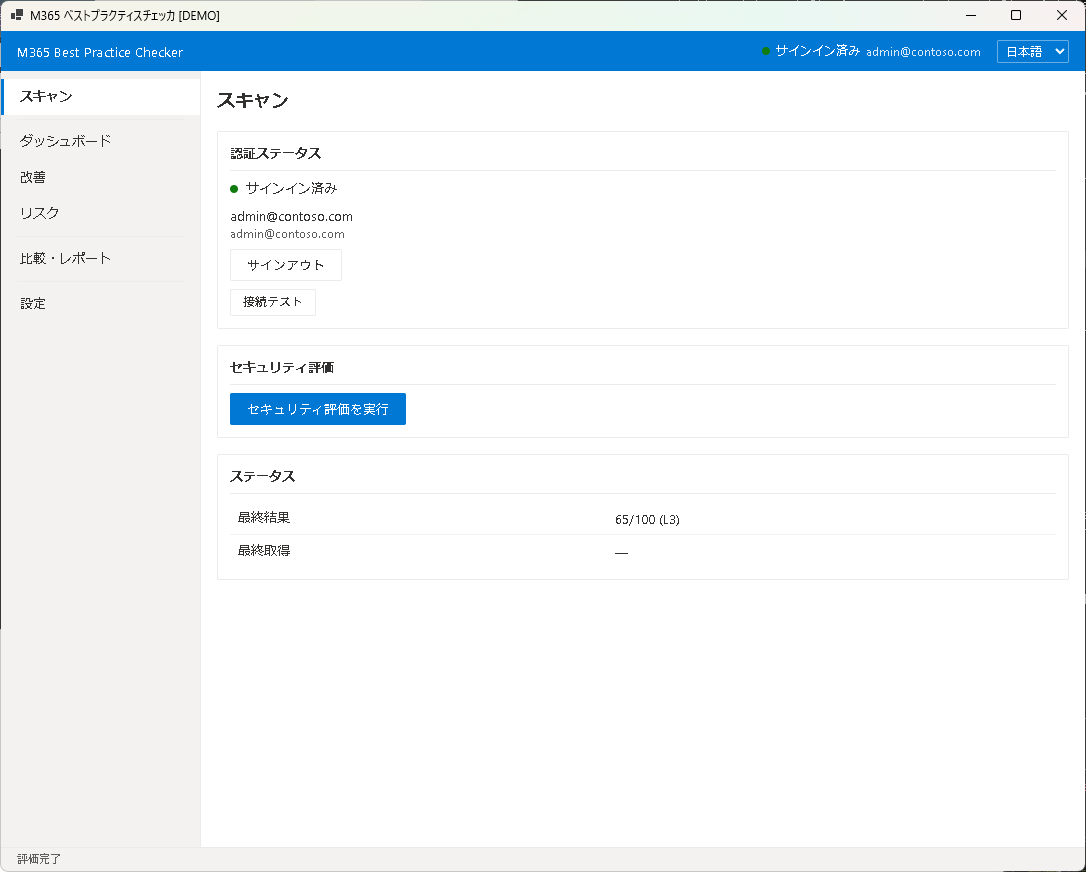
スキャンの実行
- メイン画面の「スキャン開始」ボタンをクリックします。
- アプリが Microsoft Graph API に接続し、テナントの設定情報を順次取得します。
- 取得した情報は、Identity / Device / Data / Governance の各レイヤーのルールに基づいて評価されます。
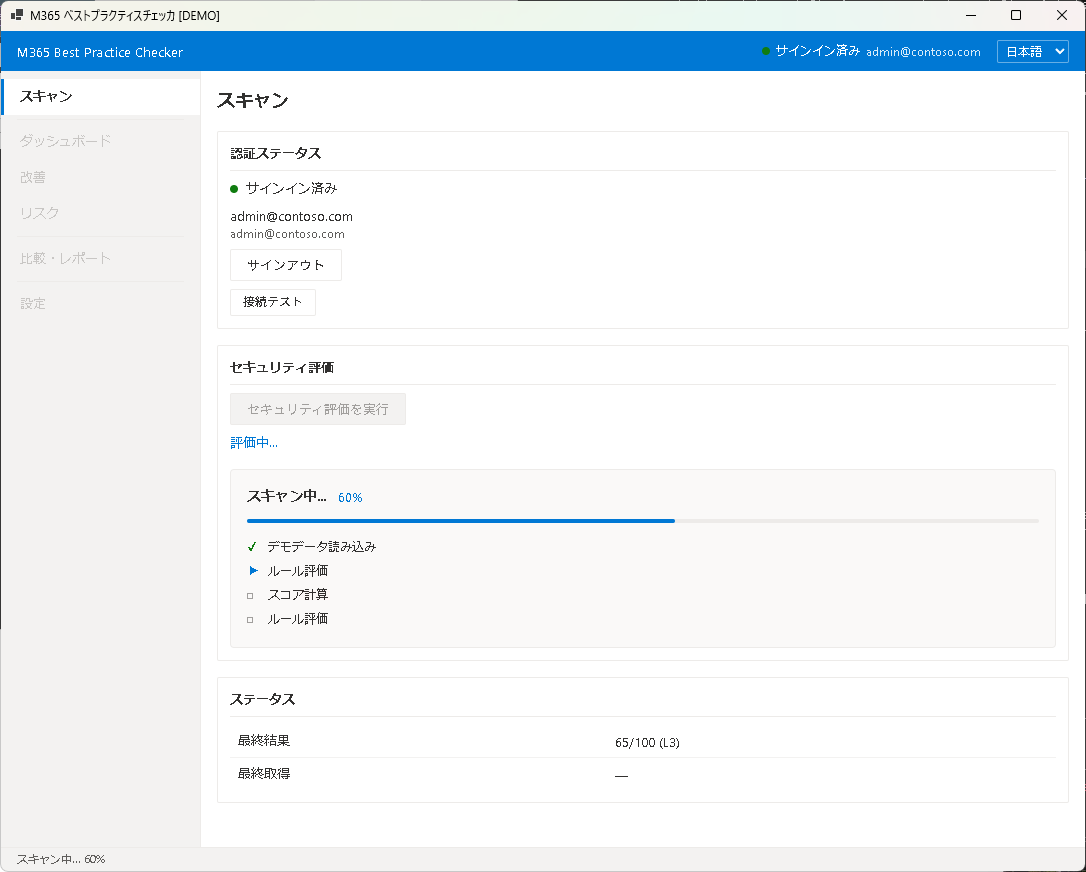
進捗表示
スキャン中は、進捗バーと現在処理中のカテゴリが表示されます。通常、スキャンは 30 秒〜2 分で完了します(テナントの規模やネットワーク速度により異なります)。
結果の確認
スキャンが完了すると、自動的にダッシュボードに遷移します。結果には以下の情報が含まれます:
- 総合スコア — 100 点満点でのベストプラクティス準拠度
- Pass / Fail / Unknown の件数 — 各ルールの評価結果
- Essential Fail — 特に重要な失敗項目(最優先で対処すべき項目)
Graph API の権限不足や、該当設定がテナントに存在しない場合、一部のルールが「Unknown」と表示されることがあります。詳しくは Chapter 9: トラブルシューティングを参照してください。
スキャンの再実行
設定変更後に再スキャンする場合は、同じ手順で再度「スキャン開始」をクリックしてください。前回のスキャン結果はスナップショットとして自動的に保存され、後から比較することができます。
次のステップ
スキャン結果の見方は Chapter 3: ダッシュボードで詳しく説明します。
Scan
The Scan feature retrieves your tenant configuration through Microsoft Graph API and evaluates it against 47 best practice rules.
Sign In
Before running a scan, you must sign in with the credentials of the app registered in Entra ID. If already signed in, the main screen displays "Scan Ready".
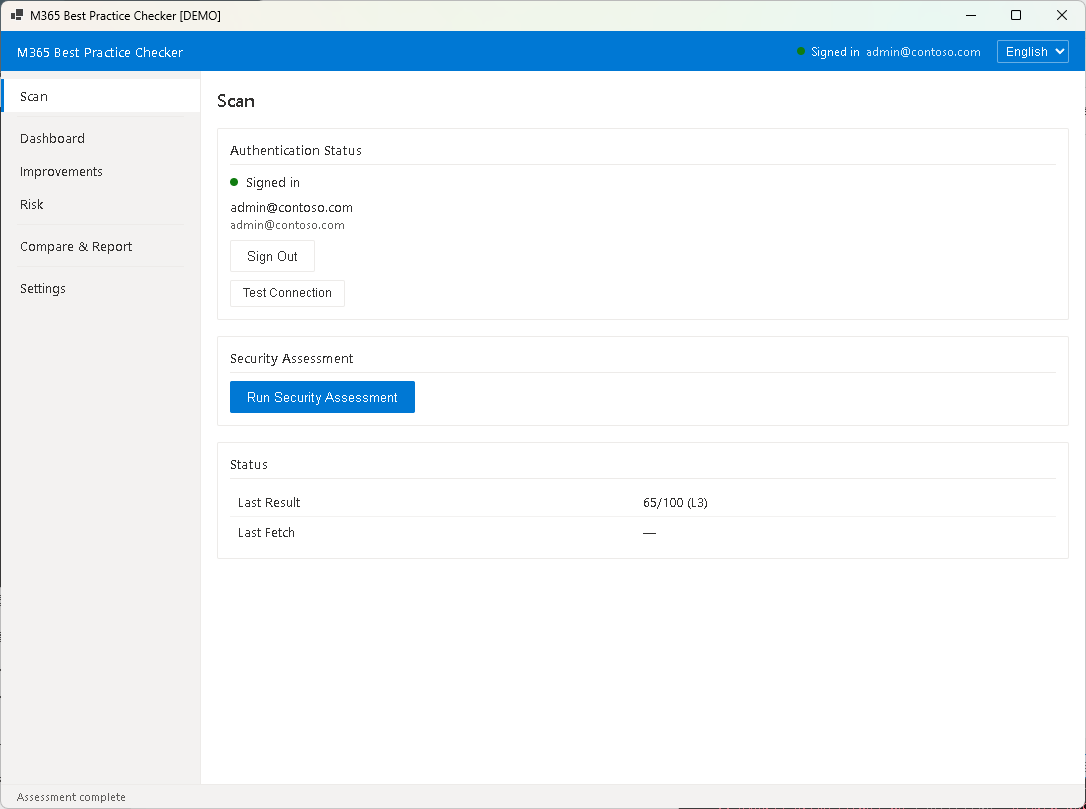
Running a Scan
- Click the "Start Scan" button on the main screen.
- The app connects to Microsoft Graph API and retrieves tenant configuration data.
- The retrieved data is evaluated against rules in each layer: Identity, Device, Data, and Governance.
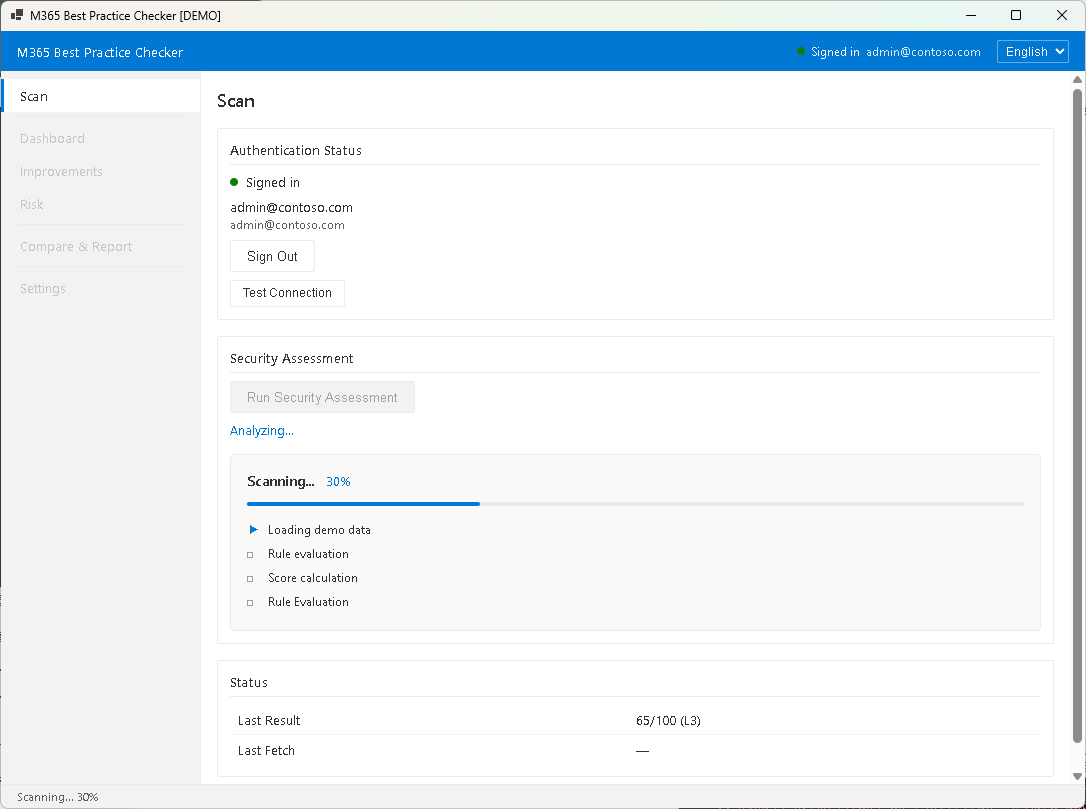
Progress Display
During the scan, a progress bar and the current processing category are shown. Typically, a scan completes in 30 seconds to 2 minutes (depending on tenant size and network speed).
Reviewing Results
When the scan completes, you are automatically taken to the Dashboard. Results include:
- Overall Score — best practice compliance on a 100-point scale
- Pass / Fail / Unknown Counts — evaluation results for each rule
- Essential Fail — critical failures that should be addressed first
Some rules may show "Unknown" if Graph API permissions are insufficient or the relevant settings do not exist in your tenant. See Chapter 9: Troubleshooting for details.
Re-running a Scan
To re-scan after making configuration changes, simply click "Start Scan" again. Previous scan results are automatically saved as snapshots and can be compared later.
Next Step
Learn how to read your scan results in Chapter 3: Dashboard.